

To turn Copilot into a highly specialized assistant, you need to feed it the right context. This guide explores the best hidden features using, custom AI rules, and workflow shortcuts to help you develop code faster inside Visual Studio Code.
(Note: You must manually install the GitHub Copilot extension and link it to a free or paid plan to follow along).
1. Be Specific: Your Secret to Better Code
The instructions you give to Copilot are the secret to getting great results. When you write vague prompts, the AI is forced to guess what you want, which usually leads to errors. It is much faster to spend time writing clear instructions upfront than it is to rewrite broken code later. If you have a complex task, you can even use tools like ChatGPT to help you plan out the perfect, detailed prompt before you paste it into Copilot.
- ❌ Poor Prompt (Too Generic): “Create a signup function for my app."
- ✅ Good Prompt (Specific and Clear): "Create a JavaScript function for user signup using Node.js and Express. It must collect a name, email, and password. Hash the password using bcrypt before saving it to a MongoDB database. Return a 400 error if the email already exists."
The more detailed the prompt, the better. For bigger tasks — like building pages with different components, following specific coding standards, and then adding tests — break the request into clear steps. ChatGPT can really help organize that prompt so Copilot understands it.
2. Debug your UI with Copilot directly inside VS Code
VS Code features an integrated browser that lets you run and test your web application without leaving the editor. When paired with Copilot, this feature turns into a powerful AI-driven debugging assistant. You can inspect UI elements, capture them, and immediately ask Copilot to rewrite the code and apply the fix. Learn how to set up the integrated browser.
3. Custom rules files for the AI
Instead of typing out instructions every time you use the prompt chat, you can save rule files, in Markdown format, directly inside your project. Copilot natively supports three specific types of markdown configuration files within your project space:
AGENTS.md
Placed directly at the root of your project. It is becoming the universal multi-agent standard, and VS Code detects it automatically for every chat request. Keep it short, and document your tech stack, project structure, build/test commands, and non-obvious tooling (e.g., uv instead of pip for Python, pnpm instead of npm for JavaScript). Avoid detailed directory listings, code style guidelines, and task-specific instructions — they dilute focus and don't help agents navigate faster. Find examples at agents.md.
.github/copilot-instructions.md
This file is specific to Copilot and lives at .github directory in the repository root. It is optional if you already have a root AGENTS.md; when both files exist their instructions are combined, so avoid repeating the same rules. Root AGENTS.md entries are generally treated as primary and often have more influence than additional instructions found elsewhere.
.github/instructions/NAME.instructions.md
Use these for granular, path-specific custom instructions such as react.instructions.md or database.instructions.md. Copilot applies them only when the current file path matches the applyTo pattern declared in the frontmatter at the top of the file. For example, set applyTo: "**/*.{ts,tsx}" to target TypeScript files only. Learn how to create path-specific instructions in the Copilot docs here.
4. Use Copilot in your terminal
Install GitHub CLI and run gh copilot to get AI command help, verify syntax, and simplify GitHub workflows from the shell. It’s a great way to keep working in one place while still getting quick guidance on commands and workflow steps.
5. Generate code faster with inline chat
Use Copilot Inline Chat to ask for code, refactors, or fixes right where you are. Right-click and choose Open Inline Chat, or press Cmd + I on Mac / Ctrl + I on Windows, and stay focused on the current line instead of bouncing to a separate panel.
6. Slash commands for faster help
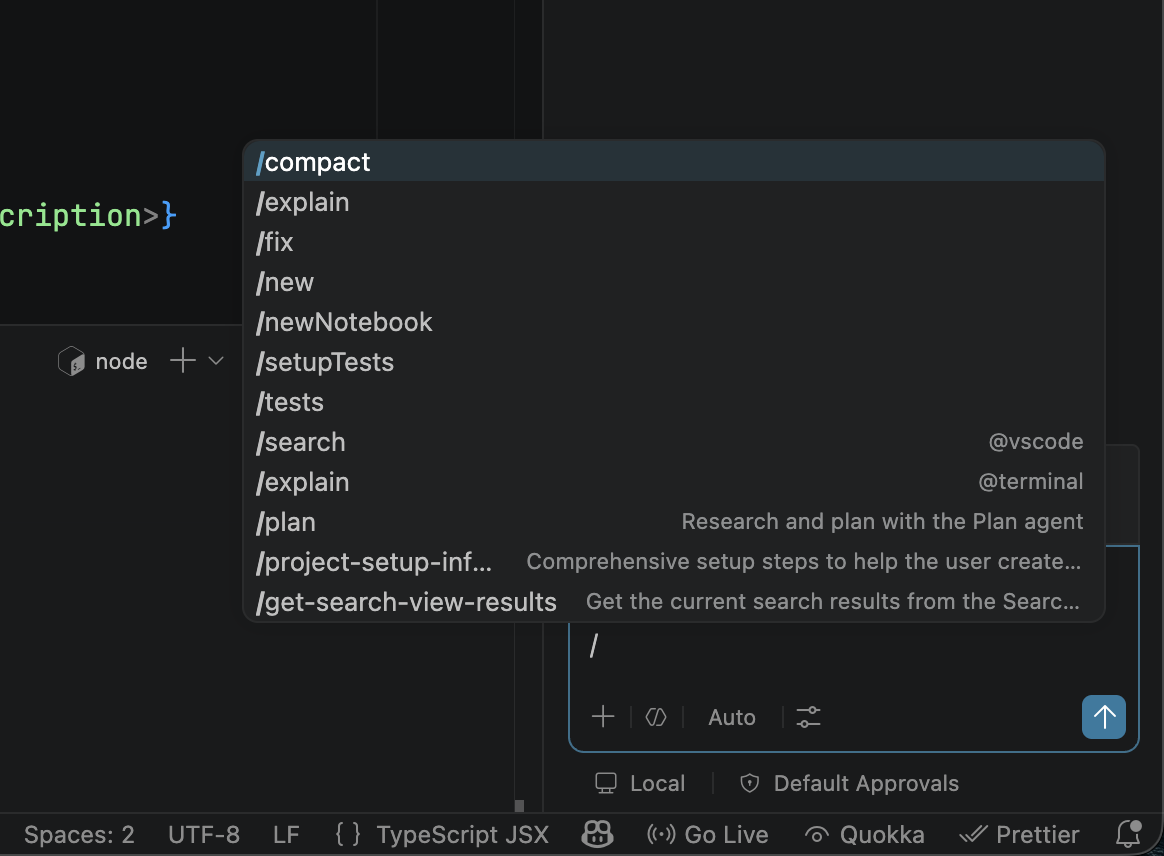
Slash commands are very useful and can make Copilot feel more like a command palette for chat. Type / in a chat or inline chat window to see actions like /explain, /fix, and /tests, then add a few words to narrow the result.
- Quick fix: Type
/fixto ask Copilot to repair the current selection. - Targeted review: Type
/explainplus a prompt likeFocus on the security implicationsfor a more specific answer.
Create Custom Prompts for Repetitive Tasks
You can customize slash commands by creating reusable prompt instruction files with extra context. They can automate repetitive work such as code migrations, test generation, security checks, or README updates. Save them in .github/prompts/ as NAME.prompt.md, for example readme.prompt.md. Read more about prompt files here.
7. Quick code explanation, review, and fix
Get help with a block of code instantly, without writing a long prompt. Select the code you want to work with and Copilot will surface smart actions to explain, review, or fix it for you. This is often the fastest way to understand legacy logic, uncover hidden bugs, or clean up messy formatting.
- Right-click menu: Highlight your code, right-click, and choose Explain, Review, or Fix.
- Lightbulb icon: Highlight your code and click the yellow lightbulb icon in the editor gutter (left margin) to access the same AI quick actions.
8. Commit messages generated by the AI
Writing good git commit messages takes time, but Copilot can write them for you based on your actual file changes. Inside the Source Control panel, simply click the sparkling Sparkle/Stars icon on the right side of the commit message input box. Copilot will analyze your staged changes and generate a clear, meaningful message that you can review, edit, and approve before committing.
You can make Copilot follow a style guide—like including Jira ticket numbers — by adding rules to your global settings.json.
For example, ask it to prefix commit messages with the current Git branch name:
"github.copilot.chat.commitMessageGeneration.instructions": [
    {
      "text": "The commit message must strictly follow this format: [branch-name] [commit-message]. Read the active branch name from the provided context file. Follow the closing bracket with exactly one space, then a short summary.",
    },
    {
      "file": ".git/HEAD",
    },
  ],
9. Choose the best AI model for your task
Copilot can use different models, even on the free plan, such as GPT-5, Claude, or Gemini. Pick the one that fits your goal — code generation, debugging, architecture — then choose it from the model selector in the VS Code chat panel controls at the bottom. Learn more about supported models.
10. Copilot Agents
Agents let you choose how Copilot helps you. Use the agent mode control in the bottom of the VS Code chat pane and pick one of these built-in options (available options may change over time):
- Agent: The default and most powerful mode. It can run terminal commands, test code, edit files, and handle broader tasks.
- Ask: A lighter mode for questions and suggestions about the code. It is ideal for quick examples, guidance, and test advice.
- Plan: Best when you want to break a complex task into smaller steps before asking the AI to apply changes.
You can also create custom agents for specialized workflows.
11. Help Copilot stay focused.
Avoid mixing different tasks in one chat window, as combining multiple subjects dilutes the AI's contextual awareness and leads to hallucinated logic. Instead, open a fresh session for each feature—such as one distinct window for authentication and another for WebSocket protocols. That keeps your prompt environment clean and improves the accuracy of result.
Learn how to create and switch between threads in the VS Code Manage Chat Sessions guide.
Conclusion
GitHub Copilot works best when you give it clear instructions and keep each chat focused. Use project rule files, terminal AI commands, and the right model or agent for the task. Better prompts lead to better code.